Team & settings
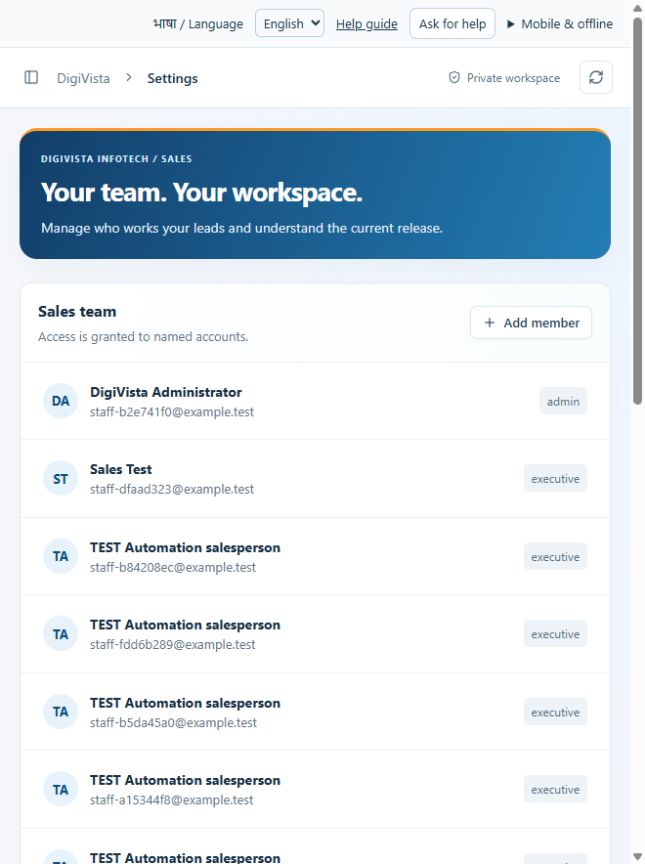
Maintain a named staff roster with appropriate roles.
Sign in with your own approved account. Open Team & settings through the sidebar or Master setup. Some actions require administrator/manager permission. Screens use anonymized test data; sample totals are not your company results.
What to do
- Review the Sales team list and choose Add member.
- Enter the approved staff name, email and role, then save.
- Configure reporting relationships and staff sign-in access separately; verify access with the intended account.
Check the result
The staff row is saved; a password-setup step is required for staff sign-in.
Screen markers
- 1. Add member
On narrow screens, scroll to reach the remaining form fields and actions. Close help to return to your unfinished form.
Why and how this activity works
Open Team & settings as an administrator and review the staff list. Add an approved staff name, email and role. Configure reporting relationships in Team hierarchy and role/access changes in Data & privacy. Arrange production sign-in separately. Each staff member needs their own approved login; adding a CRM staff row alone does not grant hosting access.
हिन्दी में समझें
एडमिन Team & settings में कर्मचारी सूची देखे। मंज़ूर नाम, ईमेल और भूमिका जोड़ें। मैनेजर Team hierarchy में और अनुमति Data & privacy में तय करें। लाइव लॉगिन अलग चालू करें। कर्मचारी रिकॉर्ड जोड़ने से होस्टिंग की अनुमति नहीं मिलती।
If something is missing or fails
Check role access, selected record and filters. Read validation errors before retrying. For a conflicting edit, refresh and review the current record. A saved setting does not prove a provider connection is active.
Full topic and field help · All screen guides · Learning centre