Qualification
Keep requirements and commercial context before quoting.
Sign in with your own approved account. Open Qualification through the sidebar or Master setup. Some actions require administrator/manager permission. Screens use anonymized test data; sample totals are not your company results.
What to do
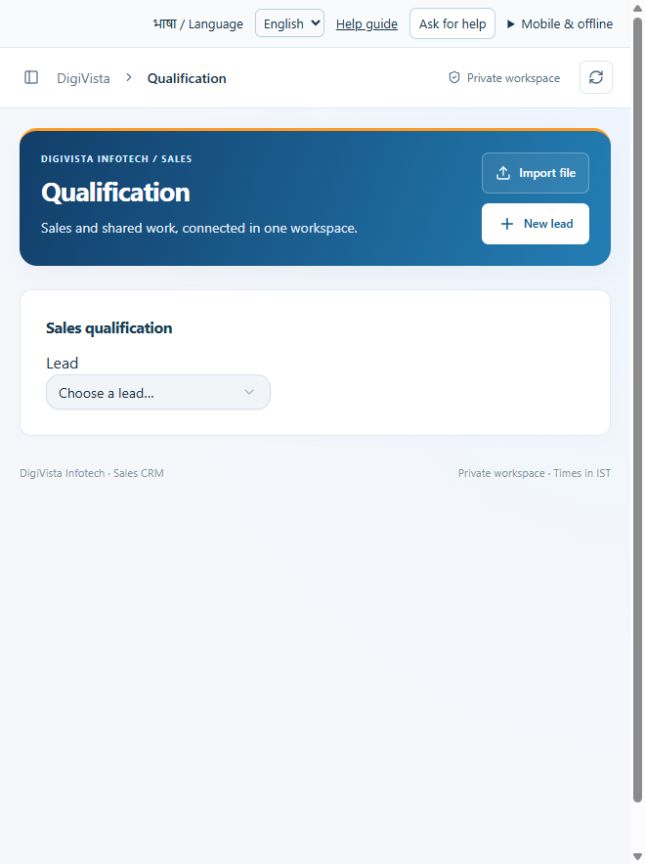
- Select the customer lead to reveal the qualification form.
- Record service, budget, expected close, requirement and source evidence.
- Choose Save qualification and verify the saved details; change the lead stage separately when appropriate.
Check the result
A requirement profile is saved without silently changing the lead stage.
Screen markers
- 1. Qualification lead
On narrow screens, scroll to reach the remaining form fields and actions. Close help to return to your unfinished form.
Why and how this activity works
Open Qualification and choose the customer lead. The form appears only after you select a lead. Enter Service interested in, Budget in INR, Expected closing date and Requirement. Record Source / provenance evidence; for a lost sale, add Lost reason. Click Save qualification. This saves the requirement profile; it does not change the lead stage. Open the lead in Leads to update its stage and log the conversation.
हिन्दी में समझें
Qualification खोलें और ग्राहक की लीड चुनें। लीड चुनने के बाद फ़ॉर्म दिखता है। सेवा, रुपये में बजट, बिक्री पूरी होने की तारीख और ग्राहक की ज़रूरत भरें। स्रोत का प्रमाण लिखें। बिक्री न हो तो कारण लिखें। Save qualification दबाएँ। इससे ज़रूरत का विवरण बचता है। बिक्री का कदम बदलने या बातचीत लिखने के लिए Leads में लीड खोलें।
If something is missing or fails
Check role access, selected record and filters. Read validation errors before retrying. For a conflicting edit, refresh and review the current record. A saved setting does not prove a provider connection is active.
Full topic and field help · All screen guides · Learning centre