Company GST & address
Reuse the correct seller identity on quotations.
Sign in with your own approved account. Open Company GST & address through the sidebar or Master setup. Some actions require administrator/manager permission. Screens use anonymized test data; sample totals are not your company results.
What to do
- Open Master setup → Items, HSN & GST masters → Company GST & address.
- Expand Add / configure master and enter approved legal name, GSTIN, state and address.
- Save, then verify the seller details on a new printable quotation.
Check the result
New quotations use the approved company identity; review tax details with the responsible accounts team.
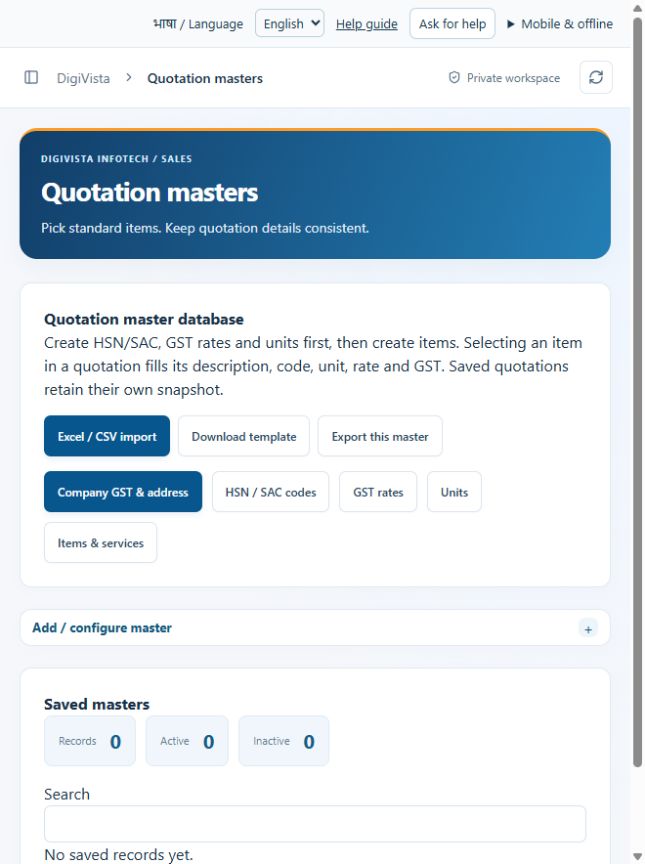
Screen markers
- 1. Excel / CSV import
- 2. Download template
- 3. Export this master
On narrow screens, scroll to reach the remaining form fields and actions. Close help to return to your unfinished form.
Why and how this activity works
Open Master setup at the top of the sidebar. Items, HSN & GST masters includes Company GST & address, HSN/SAC codes, GST rates, units and items/services. Configure codes, taxes and units before items. Admins can use templates and reviewed imports for these masters. Other master pages manage customer companies, staff, reporting managers, services and industry fields. Role permissions determine available actions. Saved quotations retain their own commercial snapshot.
हिन्दी में समझें
Master setup में Company GST और address, HSN/SAC, GST rates, units और items/services हैं। पहले code, tax और unit बनाएँ, फिर item। Admin templates और reviewed import उपयोग कर सकते हैं। Saved quotations की पुरानी commercial details सुरक्षित रहती हैं।
If something is missing or fails
Check role access, selected record and filters. Read validation errors before retrying. For a conflicting edit, refresh and review the current record. A saved setting does not prove a provider connection is active.
Full topic and field help · All screen guides · Learning centre